Squarespace guides
How to add a filter to your Squarespace blog
Last updated: November 2026
Your Squarespace blog page lists your posts, with the newest first. Older posts move behind a link at the bottom of the page. Squarespace's built-in blocks do not combine search and category filters in one list.
Use Monocle Collections to add a category filter and a search field to your Squarespace blog. Visitors select a category or enter a search term. The list updates on the same page. All steps work on Monocle's free plan.
You can also show posts by category with Squarespace's own blocks. These blocks do not need Monocle.
Before you start
Check your Squarespace plan
The Collection loads with JavaScript in a code block. Squarespace allows JavaScript in code blocks only on the Squarespace Core, Plus, and Advanced plans. See Add custom code to a page with code blocks in the Squarespace Help Center.
You also need:
- A Monocle account with your Squarespace site connected. Follow Getting started to connect your site. The free plan is enough.
- Categories on your blog posts. Set these in Squarespace. The Collection uses the same categories.
New Monocle sites start with a trial. During the trial, the editor also lets you use features from paid plans and identifies those features. After the trial, the Collection shows only what your plan includes.
Create a Collection for your blog
- Open your site in the Monocle admin interface.
- Open Collections.
- Select Create a Collection.
- Enter a name in Collection name in the toolbar, for example "Journal list".
- In Content, clear All content.
- Select the checkbox on your blog's row with the expand arrow. This selects the blog page and all its posts.
- Check that the preview shows your blog posts.
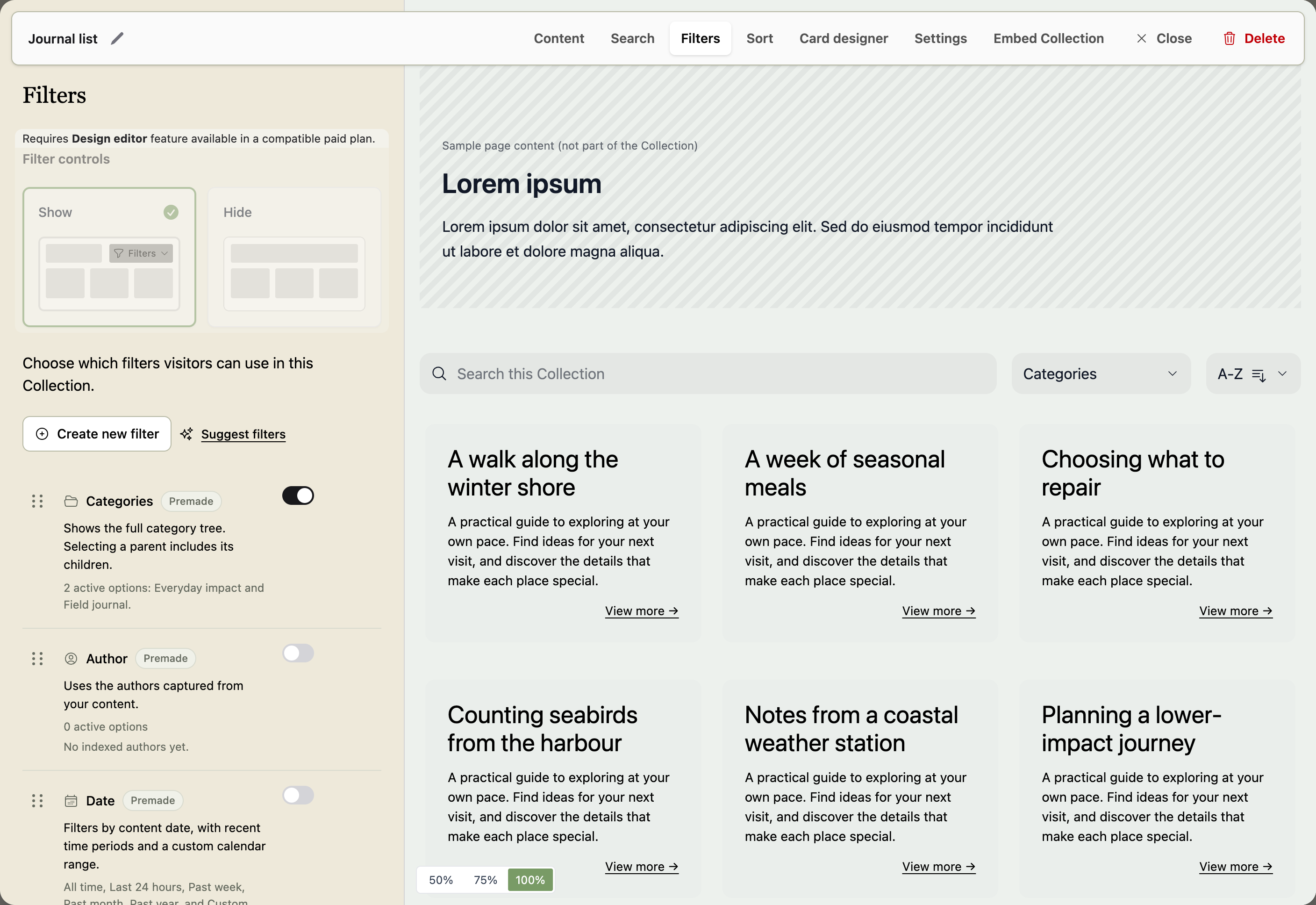
- Open Filters.
- Turn on Categories.
The name helps you find the Collection later. The Categories filter uses the categories from your Squarespace blog. You do not need to change other settings for this free-plan setup.
Monocle saves the Collection automatically. If the editor shows a validation message, resolve it before you continue. The embed code is available only after Monocle saves a valid configuration.
Add the Collection to a Squarespace page
You can add the Collection to any page on your site. In the video, Felix uses a separate page called Journal. The original blog page stays unchanged. The Collection links to its posts.
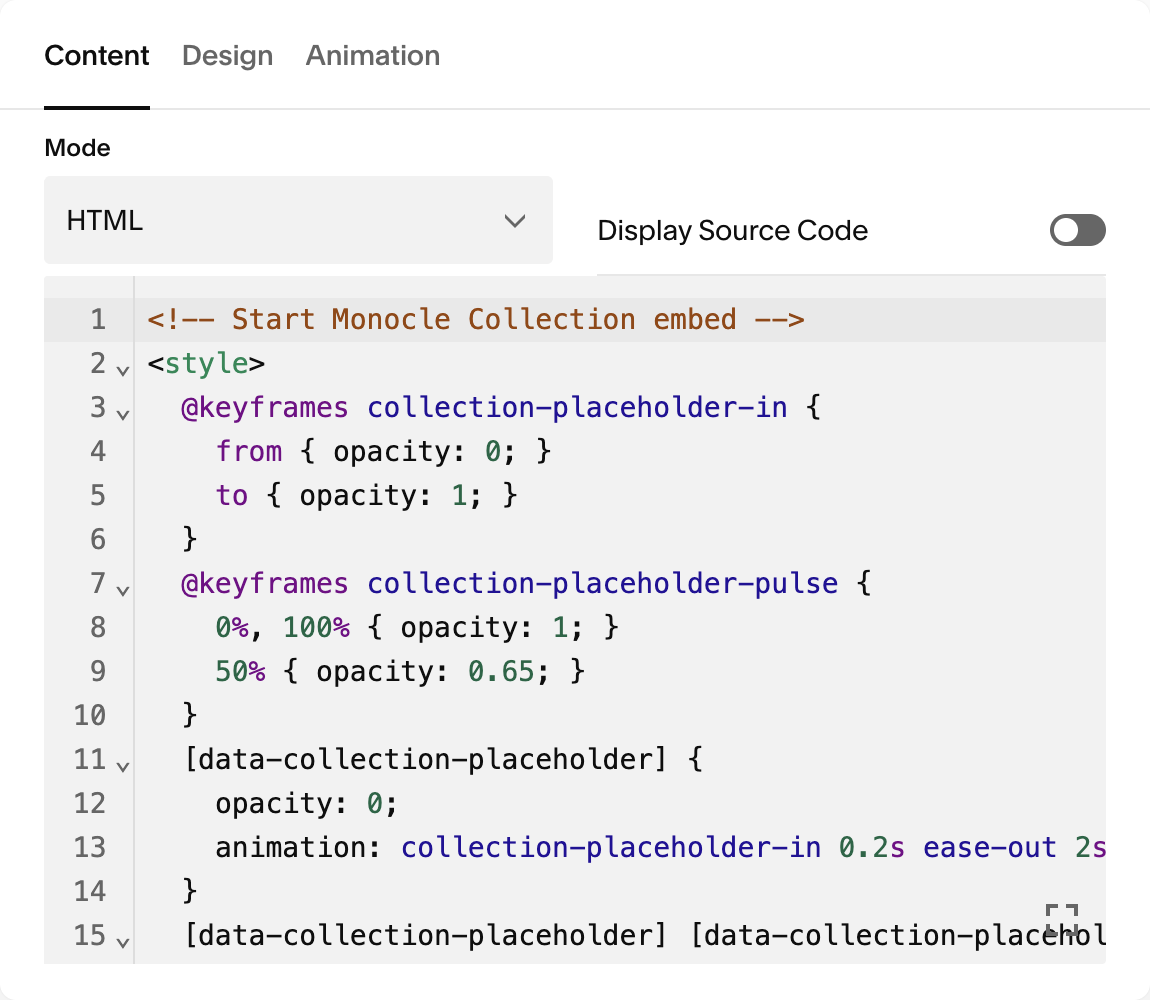
- In the Collection editor, select Embed Collection.
- Use the copy button to copy the complete embed code.
- In Squarespace, open the page where you want the filter.
- Select Add Block, search for Code, and select the standard code block, not the AI version.
- Resize the block to the required width.
- Select Edit in the block's toolbar.
- Select HTML under Mode.
- Paste the embed code.
- Make sure that Display Source Code is off.
- Save the page.
In the video, Felix makes the block full width. The code block does not need a separate save.
Check the result
Open the published page in a new browser tab, outside the Squarespace editor. The editor can show a placeholder instead of the Collection.
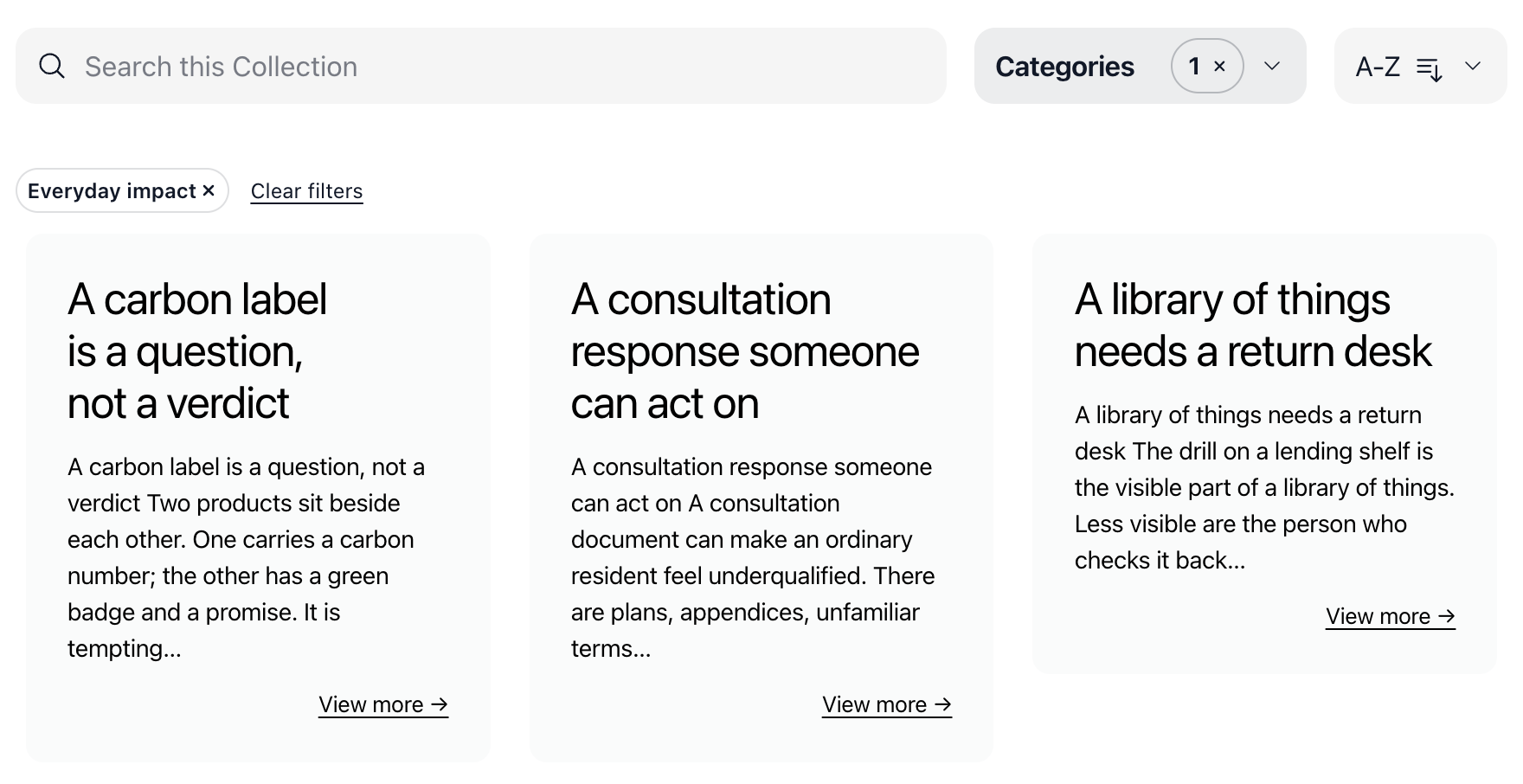
The page shows your posts with a search field and a Categories filter, as in the Monocle preview.
- Enter a search term.
- Check that the list shows matching posts.
- Clear the search field.
- Select a category.
- Check that the list shows posts from that category.
Both controls update the list on the same page.
New posts appear in the Collection after Monocle crawls your site again. On the free plan, Monocle crawls your site once a day.
Collections is in beta. If something does not work as expected, see Troubleshooting or write to hello@monocle-search.com.
What each Monocle plan includes
Every Monocle plan includes Collections. Visitors can search blog posts, filter by category or tag, and sort by relevance or A to Z.
| Monocle plan | Included features |
|---|---|
| Free | Search and filters for up to 500 indexed pages. |
| Starter | The free-plan features, with a higher page allowance. |
| Core | The Starter features, plus images, custom card designs, date sorting, and a choice of filter positions. |
| Professional | The Core features, plus product search with prices, sale labels, and filters for price and stock. |
The end of the video shows a Collection with images and a store with prices. Images need Core or Professional. Prices need Professional.
See plans and pricing for the current features and page allowances.
Filter a blog with Squarespace alone
Squarespace has two blocks that show posts by category. They do not need Monocle or custom code.
An Archive Block groups your posts, for example by category. It shows categories as a list or a dropdown menu. Each category links to the posts in that category. See Archive blocks.
A Summary Block shows posts from one blog page. In its settings, you can limit the posts to one category or tag. Visitors cannot change this selection. See Summary blocks.
For search, Squarespace has a separate Search Block. All three blocks are part of Squarespace, so you do not need another account.
Frequently asked questions
Should I use categories or tags?
Squarespace recommends a few categories to group your posts by subject or type. Use tags for more specific details, such as the place that a post describes. See Categories and tags.
The Categories filter in a Collection uses your blog categories. You can create separate filters from tags.
Can I filter a Squarespace blog by tags?
Yes. You can create custom filters with your own names and options. Each option can combine your blog's indexed tags, categories, and author names. A post matches an option when any of its values match.
Open Filters and select Create new filter. Set each option's Matching tags / values, then enable the filter in your Collection. See Filters for instructions.
Monocle also creates filters automatically from tags that share a prefix. For example, Region: Arctic and Region: Alps become a Region filter with Arctic and Alps options. This needs at least two different values with the same prefix. After the next crawl, turn on Region under Filters to show it.
How many posts can a Summary Block show?
Squarespace Help says that a Summary Block cannot show more than 30 items. A Collection shows a long list across several pages, as in the video.