Collections
Design a listing that fits your site
Use the Collection editor to build a finished design without code. It is also a useful starting point for a custom design: set the content, fields, and behaviour first, then change the presentation.
Custom design controls need Design editor access. Images and products retain their separate plan requirements. Check the notices in the editor and the current plans and pricing.
Build the design in the editor
- Open the Collection and select Card designer.
- Choose Regular grid for aligned rows, or Uneven grid for cards with different heights.
- Select the fields that visitors need. Regular and product cards have separate profiles.
- Select a text field to open Edit content or Settings.
- Set its type, size, spacing, colours, and placement.
- Set the image ratio and position. Move the image above, below, or between text rows.
- Check the neighbouring previews, not only the focused card.
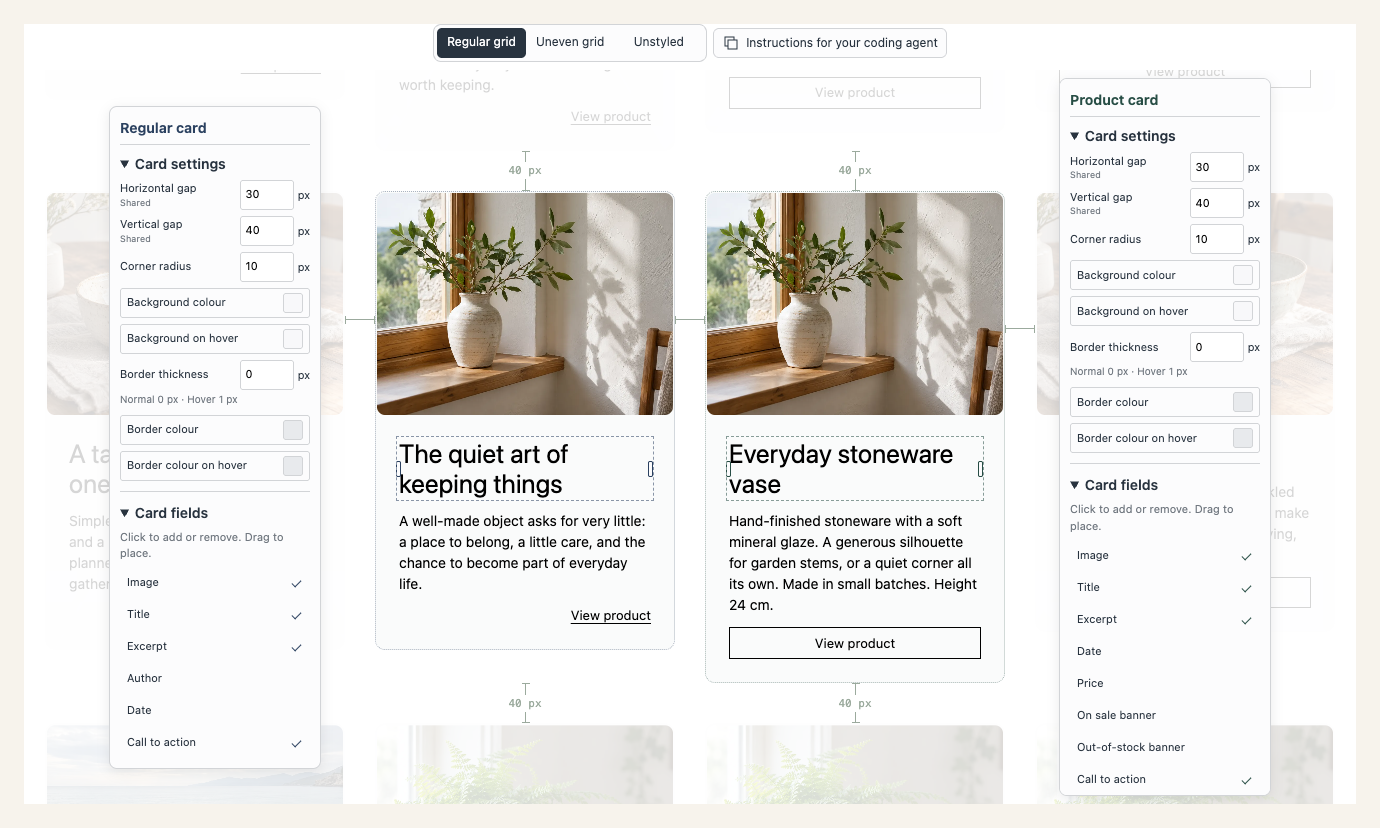
A field can mix literal text with values such as {{title}}, {{excerpt}}, {{author}}, {{date}}, or {{price}}. Type {{ while editing for suggestions. Do not use a literal price or date where the value should come from each item.
For excerpts, drag the bottom handle to change the maximum displayed height, or use Excerpt length. A longer allowance gives the indexed excerpt more space. It does not provide the full article or the raw product description. Short source text can still produce a short card.
Use Search and Sort to choose the visitor controls. In Settings, choose Control style, Sticky controls, and Pagination.
All Collection styles use ordinary page DOM. Your site CSS can customise styled cards and controls as well as Unstyled ones. The card layout and control style are independent.
Start from Unstyled
Choose Unstyled in Card designer for a clean starting point without the built-in visual styling. It keeps semantic HTML, selected fields, responsive structure, and accessibility behaviour.
Unstyled retains field order and rich content, but does not apply the saved designed-card geometry, colours, or positioning. The saved design is kept if you switch back.
Unstyled under Settings → Control style removes the built-in visual styling from the search, filter, and sort controls. It is optional: you can also customise styled controls with CSS.
Image-left layouts require custom CSS. The visual editor places the image in the vertical field stack. Use the semantic hooks instead of moving or replacing the live card nodes.
Work with an LLM or coding agent
- Embed the Collection on the intended page first.
- Choose the content, fields, filters, and starting design.
- In Card designer, copy Instructions for your coding agent.
- Give the agent those instructions, the page URL, and a clear design brief.
- Ask it to inspect the actual page, make a small change, and check the result.
- Repeat until the desktop and mobile layouts work on the site.
The copied instructions describe the current Collection, its scope selectors, selected fields, and working interactions. They are available for designed grids as well as Unstyled mode. Copy them again after changing the configuration.
A useful brief is specific: “Use a quiet editorial style, strong serif headlines, thin rules, and short excerpts. Keep the existing filter controls and visible keyboard focus. Stack the layout on a phone.” Add your fonts, colour palette, and a reference if you have one.
An agent with browser or computer-use tools can inspect the embedded page, try browser-local CSS, and test the real host theme. A text-only LLM cannot see whether the result fits your page. Give it screenshots, then perform those checks yourself. Do not treat generated CSS as verified or let the agent publish site changes without permission.
Squarespace's Custom CSS processor can reject some modern CSS syntax. Use the platform-specific instructions from the editor. Check the compiled result on the published site, not only a standalone HTML preview.
Style gallery
These examples use the current Collection renderer, fictional sample content, and custom CSS. They show design directions, not additional editor presets. The same content can support very different presentations without rebuilding search or filtering.
Treat the whole interface as one design: typography, search input, filters, sort controls, and cards. These examples use narrower three-column desktop grids and different image proportions, from tall product photography to square catalogue images. The layouts reflow on smaller screens.
Editorial and typographic
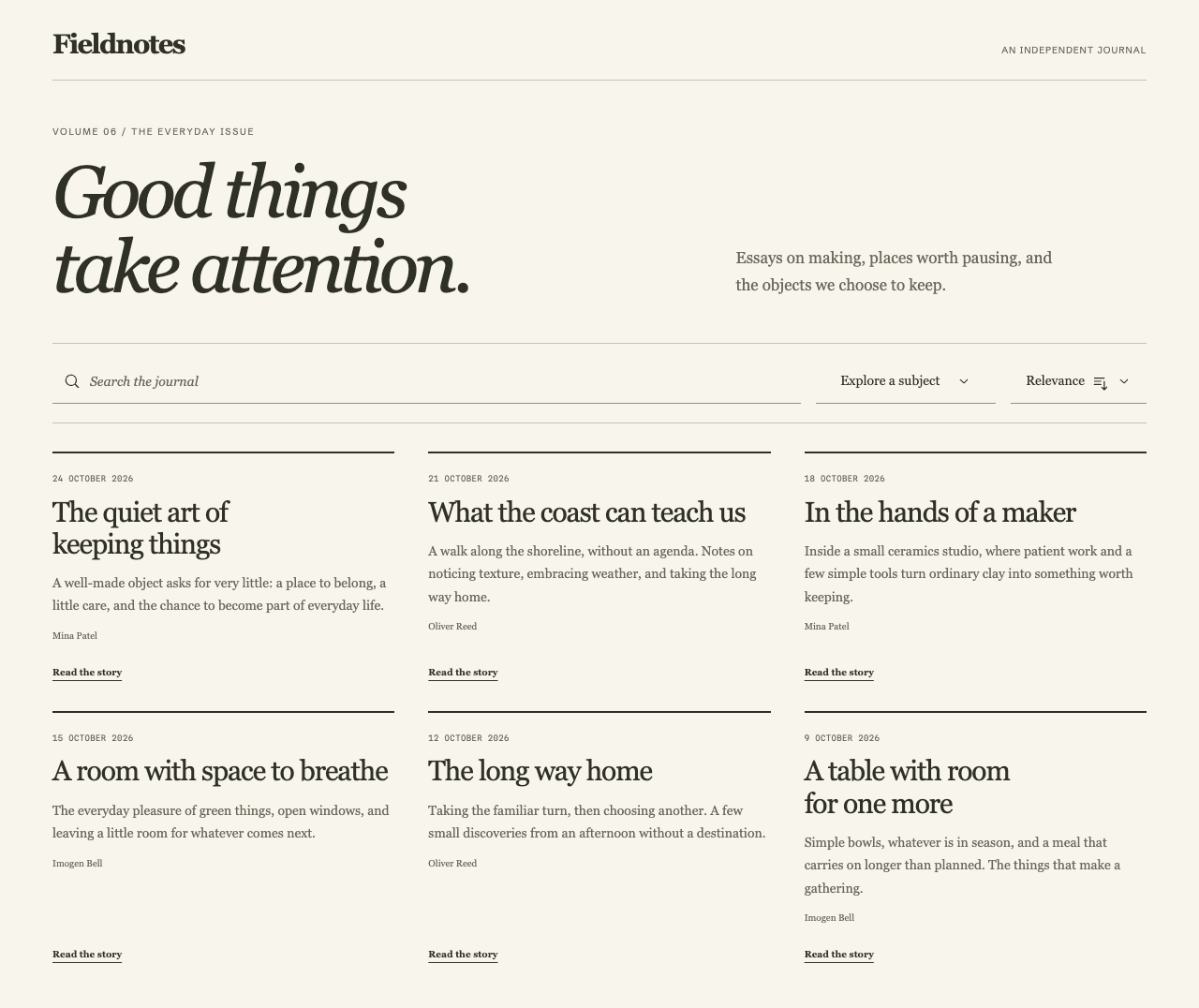
Let the title lead. Use a clear type hierarchy, generous spacing, and a short excerpt. This suits essays, journals, and resource libraries. Keep author and date text readable rather than treating it as decoration.
Brutalist
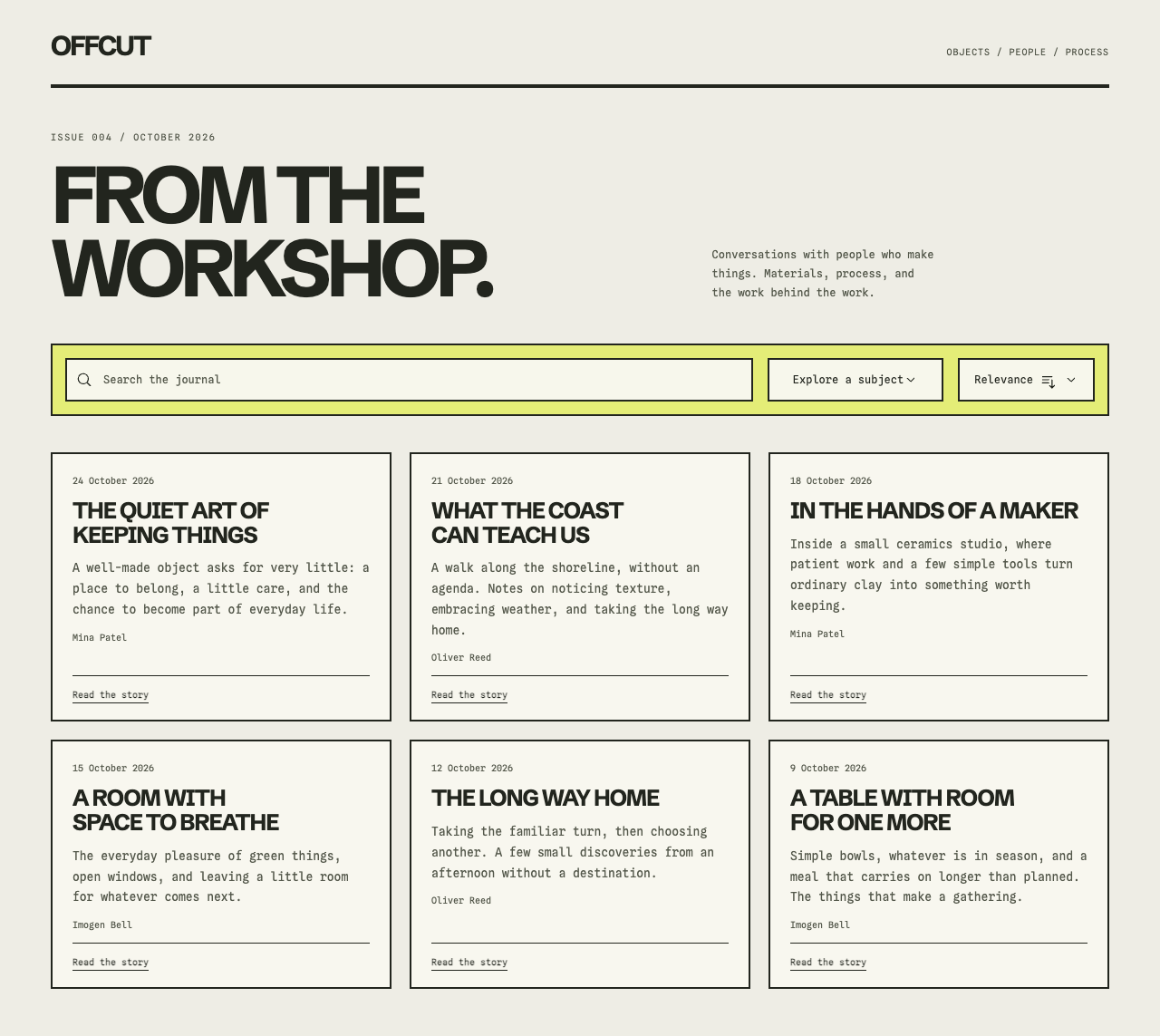
Use heavy rules, large labels, and direct alignment. The structure should remain obvious. Strong visual contrast is not a reason to remove focus outlines, labels, or space around controls.
Slick and modern
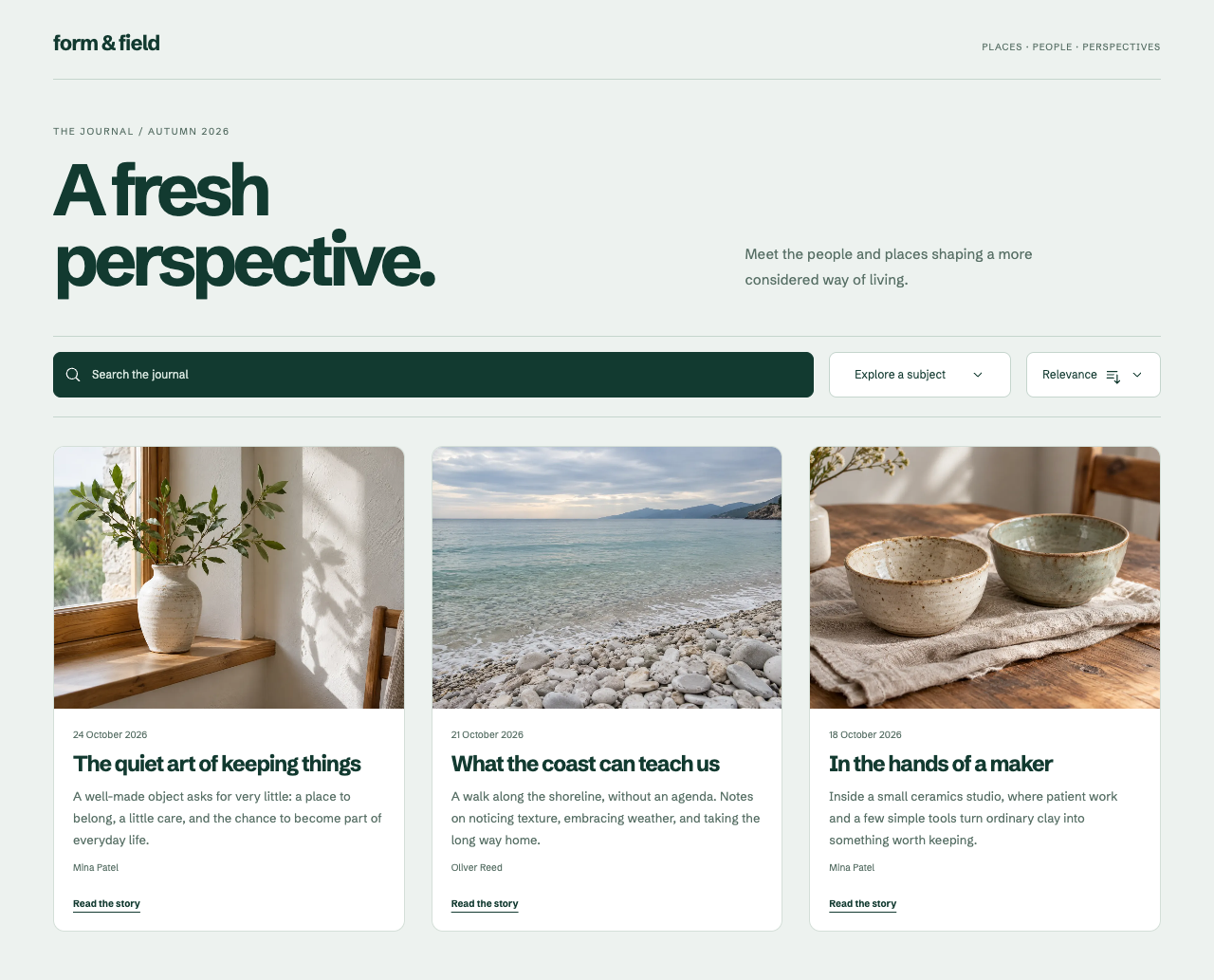
Use consistent image proportions, a compact hierarchy, and restrained surfaces. Check that the design still works with a long title, a missing image, and an empty excerpt.
Product studio
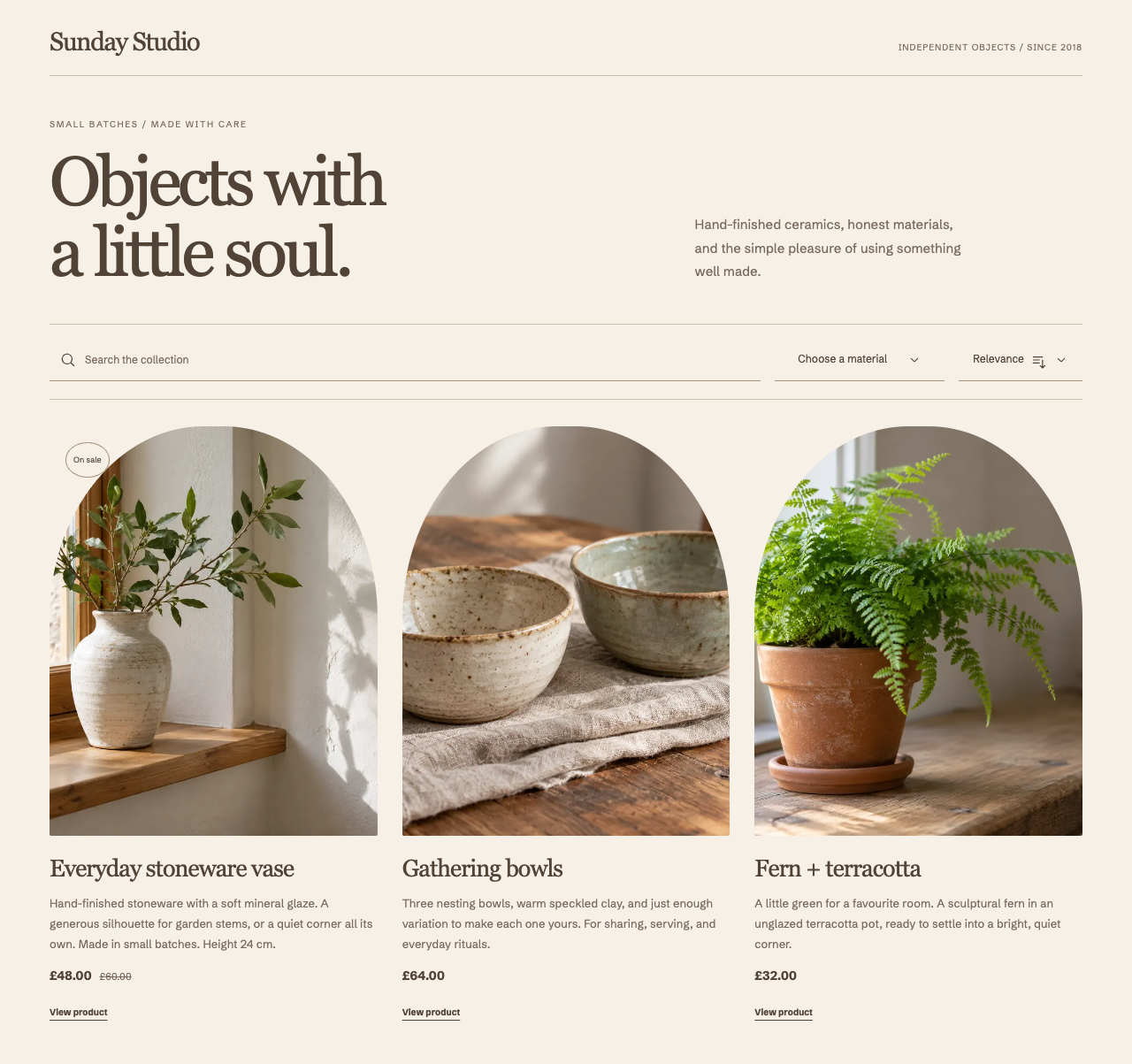
Give photography room and keep the price close to the product name. Use this approach when shape, material, or finish helps the visitor choose.
Minimal catalogue
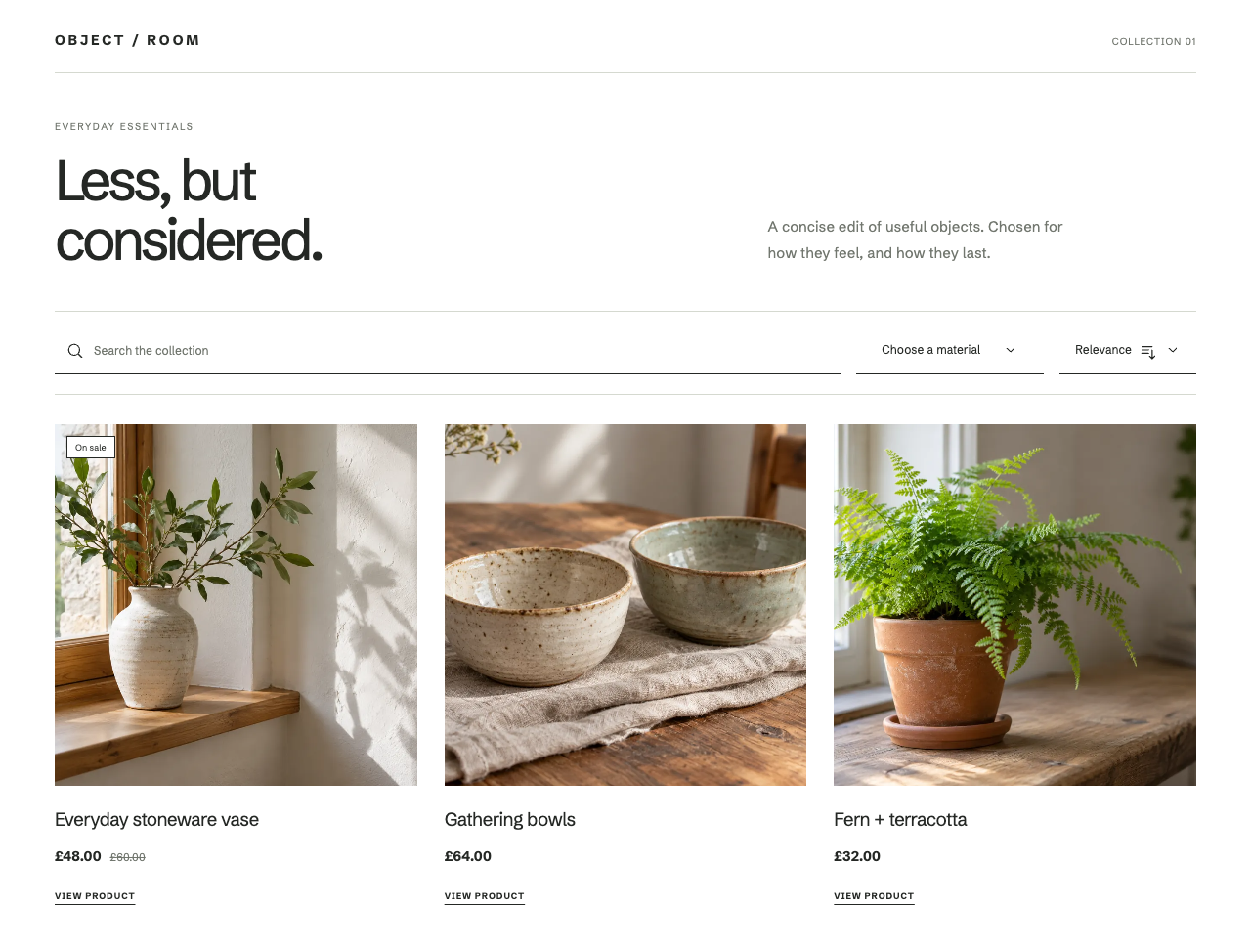
Reduce decorative framing and show only the fields needed to compare items. Do not remove sale, stock, or original-price information merely to make every card identical.
Bold shop front
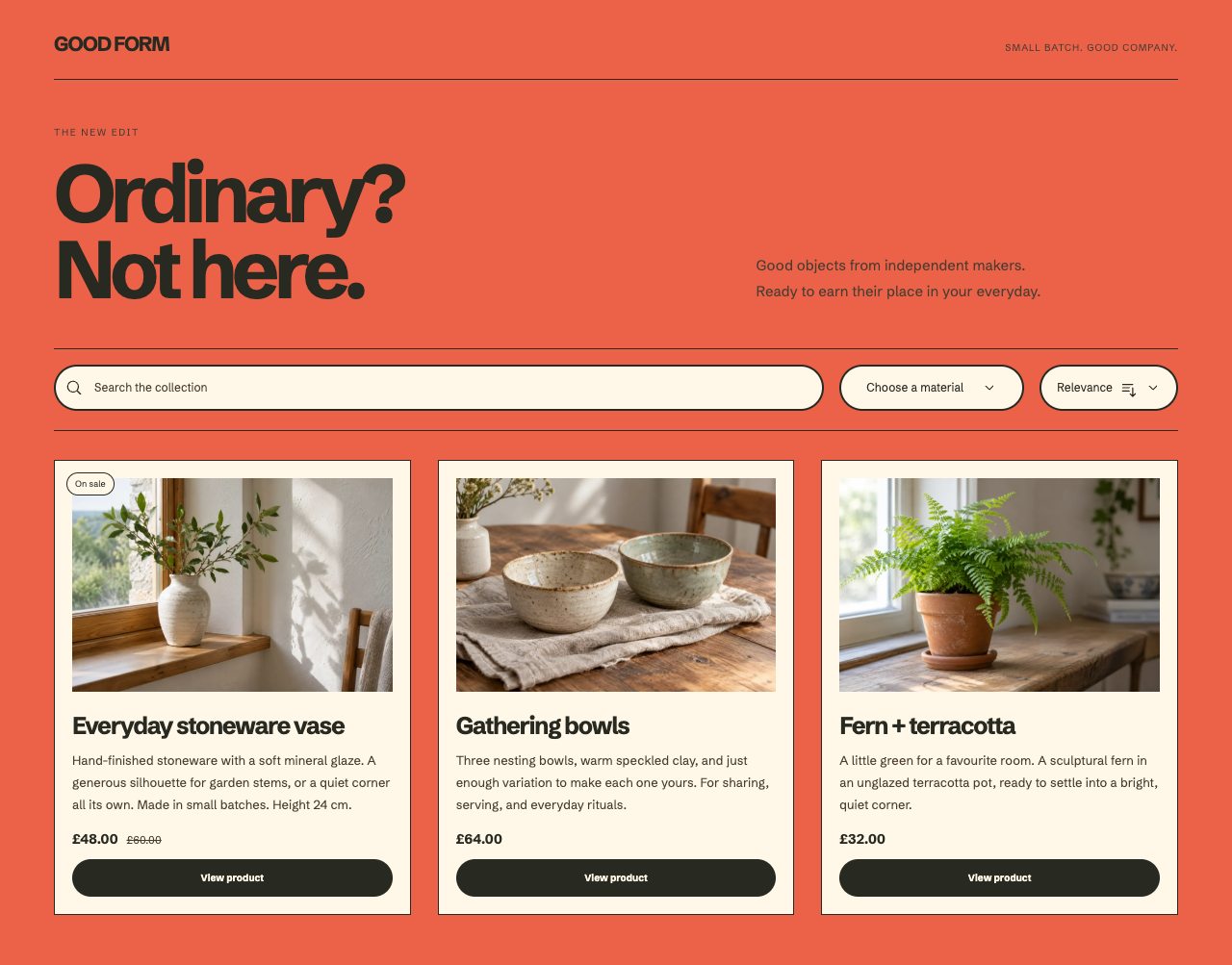
Use weight and spacing to give the catalogue a recognisable character. Keep the product link and availability information easy to find. On Squarespace, the call to action opens the product page; Collections do not provide WooCommerce cart controls.
Playful and expressive
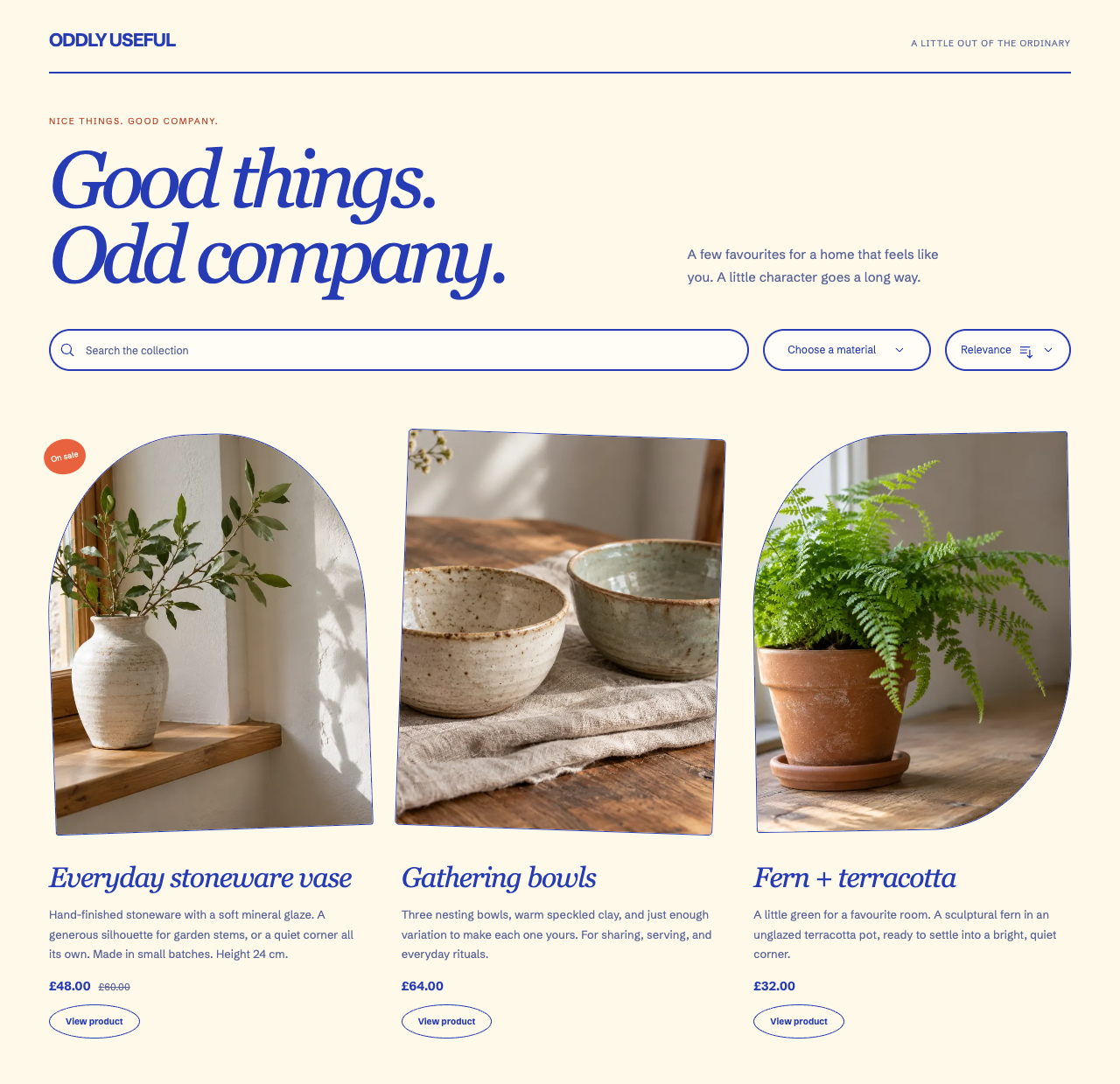
Use a distinctive palette, expressive type, and varied image framing without changing how the controls work. Keep the reading order, product information, and focus states clear. Small offsets should add character, not make the layout harder to use.
Give featured items more space
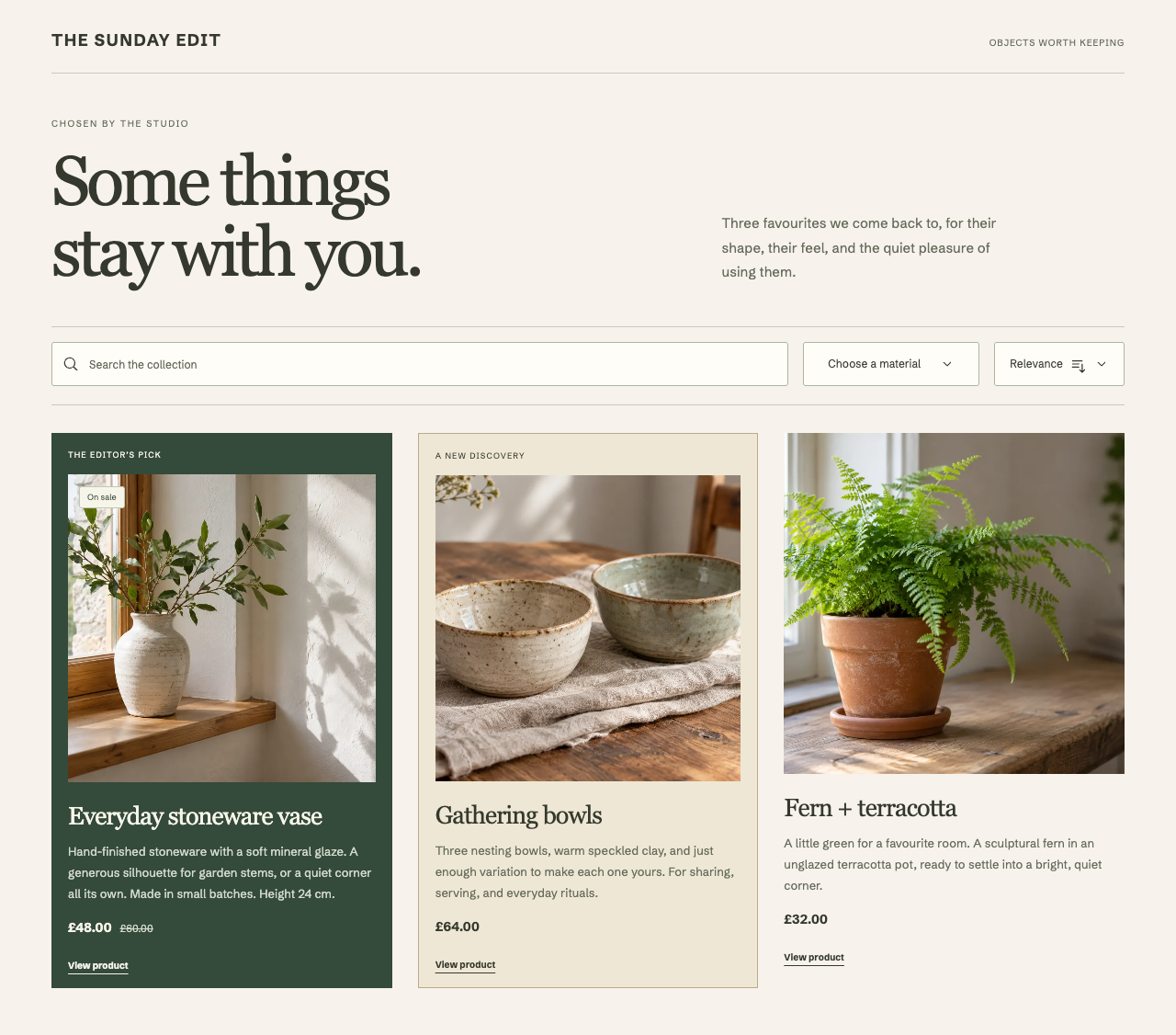
Site-wide Pin and Bump preferences expose two card classes:
.collection-pinnedidentifies Pin..collection-boostedidentifies Bump.
These hooks work in designed and Unstyled layouts. Scope them to the Collection's root. In a designed grid, the visual surface is .collection-designed-card inside the article. In Unstyled mode, style the semantic card body.
Do not infer a boost from a card's position. The classes reflect the effective preference, including when a visitor chooses an explicit sort order. Styling a card does not change that order. See How Monocle ranks results for ranking behaviour.
An enhanced featured product
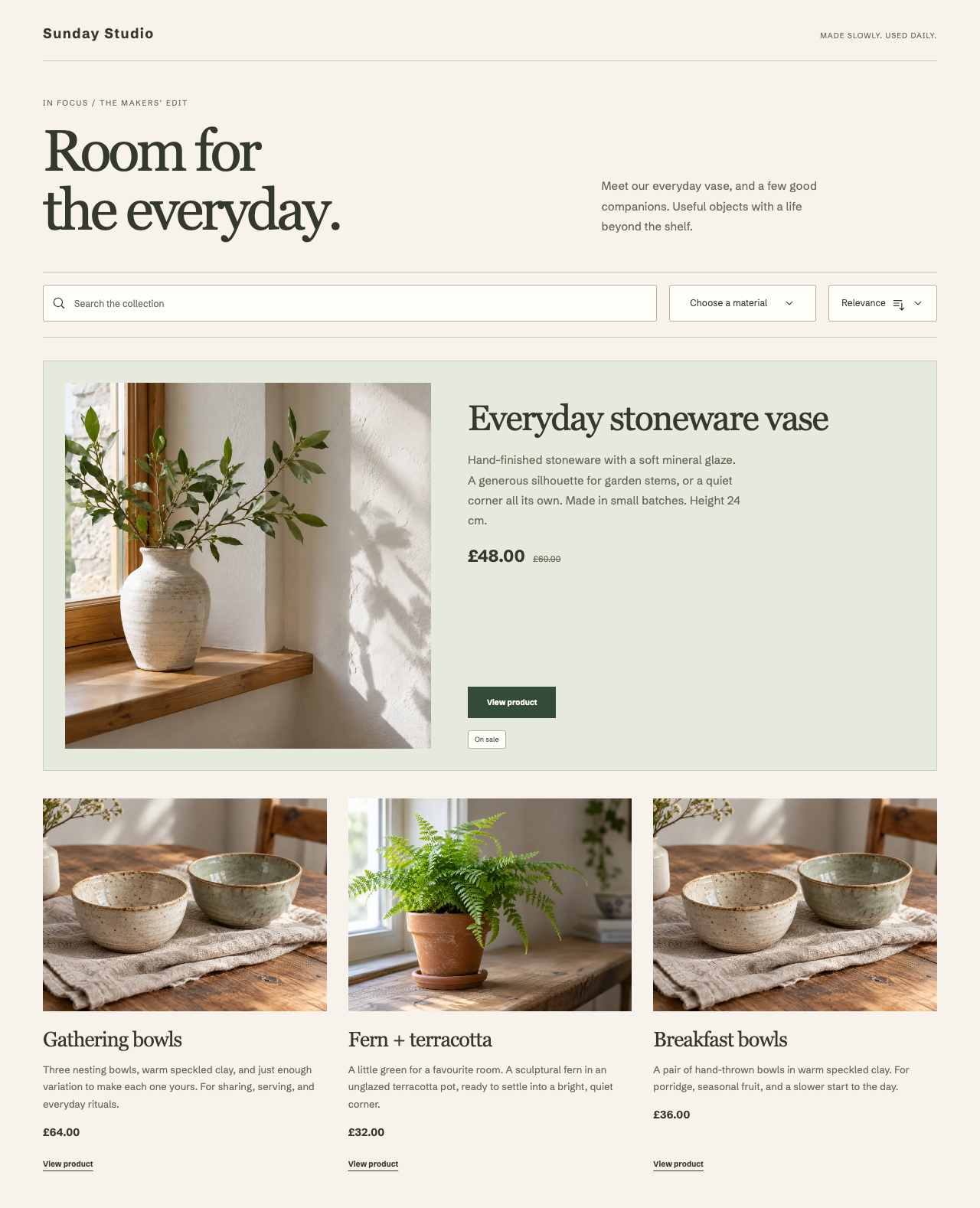
Use custom CSS to give a bumped product a wider card, with the image on the left and details on the right. Keep ordinary products compact. On a narrow screen, stack the image above the details.
Select the product's title, price, excerpt, and call to action before writing the CSS. Increase the excerpt allowance if a longer summary helps. The summary comes from the indexed excerpt, not a raw description or the full document. Link to the product page for complete details.
Check the design on the real page

Check wide and narrow containers, long titles, missing fields, sale prices, an empty result, and loading errors. Use Tab and the arrow keys to reach cards and controls. Keep keyboard focus visible, preserve native links and buttons, and respect reduced-motion preferences.
Use Customising Collections for scoped CSS and JavaScript patterns. Keep SEO in mind if the design replaces an existing listing.