Collections
Help visitors explore your content with Monocle Collections
A Collection puts a searchable, filterable listing inside a page on your site. Visitors can browse before they type, narrow the results with filters, and open the original item.
Use a Collection for a blog archive, a product catalogue, a resource library, or a selection of related content. You choose which indexed items it includes. The items stay in their original locations, so you do not need to maintain a second copy.
A Collection is different from the floating Monocle search interface. It stays within the page and has its own content selection, filters, and design. You can use both on the same site.
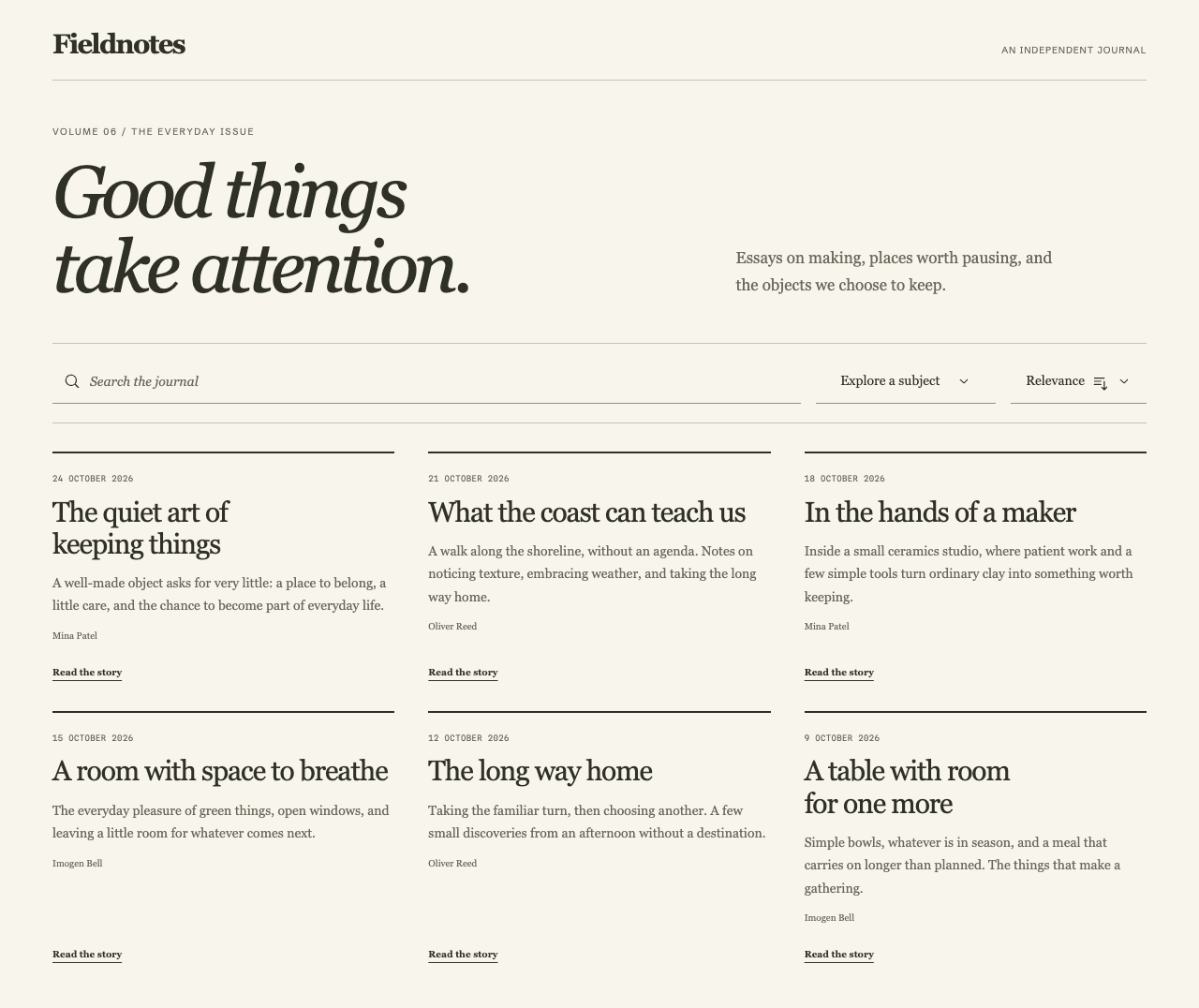
A custom Collection design with sample content. Try live Collections on our Squarespace demo site.
Try the live examples
The Monocle demo site runs on Squarespace. These pages contain real Monocle Collections:
- Journal: browse articles, search within the journal, and filter by category.
- Field goods: browse a product catalogue and open the original product pages.
Still North is a fictional institute. Its catalogue, people, and illustrations are demonstration material. The shop does not take payments or fulfil orders.
Check what your plan includes
Collections are included in all Monocle plans, including the free one. They use the same content and feature permissions as regular Monocle search.
- Core includes all design features, images, and document search.
- Professional adds product search, custom content, and content boosting with Pin and Bump.
Some features are available during the trial but need a compatible paid plan afterwards. See the current plans and pricing for details.
If access changes, Monocle keeps the saved preferences. The published Collection uses only the content and design features currently available. Collections do not bypass Member Site access rules.
Create a Collection
- Open your site in the Monocle admin interface.
- Open Collections.
- Select Create a Collection.
- Edit Collection name in the toolbar. Choose a name that helps you identify it later.
- In Content, select the sources or paths to include. Use All content only if the listing should cover the whole available index.
- Check the preview. Open the advanced content settings if you need source-type switches or Content to show rules.
- Open Filters and choose the controls visitors need. Start with one or two useful filters.
- Use Search, Sort, Card designer, and Settings to set the available behaviour and appearance.
Collection settings save automatically. Resolve any validation message before you continue. The embed snippet becomes available after the Collection has a valid saved configuration.
The content selection defines the Collection's scope. Visitor filters narrow that scope; they do not add excluded content. New or changed source content appears after Monocle crawls or synchronises it.
The embed snippet identifies the Collection; it does not store its design or settings. Embed it once. Later changes to the design, filters, or other settings load through the same snippet, so you do not need to update the code on your site.
Embed it on Squarespace
- Open Embed Collection in the Collection editor.
- Use the copy button to copy the complete snippet. The collapsed code view still copies the full snippet.
- Open the Squarespace page where the listing should appear.
- Add a standard Code block in the required section. Do not use the AI-enabled version, which can interfere with the Collection.
- Select HTML and paste the snippet.
- Leave Display Source switched off.
- Save the page and open the published page outside the Squarespace editor.
Use the whole snippet in the page content, not in the page header. Keep its fallback message and Retry link. The standard snippet includes a loading placeholder. Expand the code view to find the shorter version without that placeholder.
On other platforms, paste the snippet into the page HTML at the required position. The host must allow JavaScript there. A page editor that does not execute scripts can show only the placeholder, so always check the published page.
Check the result
Try a query, select and clear a filter, change the sort order, and move to another result page. Open an item to confirm its destination. Check a narrow screen and use the keyboard as well as the pointer.
If the listing is empty, check the content selection, indexed content, plan access, and active visitor filters. If it cannot load, keep the fallback visible and follow Troubleshooting.
Continue the setup
- Migrating a Collection: replace Universal Filter or a Squarespace Summary Block.
- Filters: organise native metadata into useful choices.
- Design: use the editor, or start a custom style.
- Customising Collections: use semantic CSS hooks and public JavaScript events.
- SEO: understand rendered links, crawlability, and host-site responsibilities.