Customise Monocle Search
Show Member Site content in search
Requires Monocle "Professional" plan.
What member search can do
Squarespace does not include Member Site content in search by default. Monocle can index this content.
After setup, you can control who sees Member Site content:
- Members can search the content that they can access.
- Logged-out visitors can see protected results, or you can hide those results.
- AI answers can use Member Site content for logged-in members when you allow it.
Member Site features require a Professional plan. Monocle can distinguish members from logged-out visitors on sites connected through Squarespace OAuth. If you installed Monocle with Code Injection only, all visitors can see excerpts from indexed Member Site content.
Step 1: Give Monocle member credentials
Monocle needs the credentials for a member account so that it can crawl protected pages.
- Open Member Sites in the Monocle interface.
- Enter the email address and password for a member account. Use an account for a paying member, not a Squarespace administrator account.
- Select Set credentials.
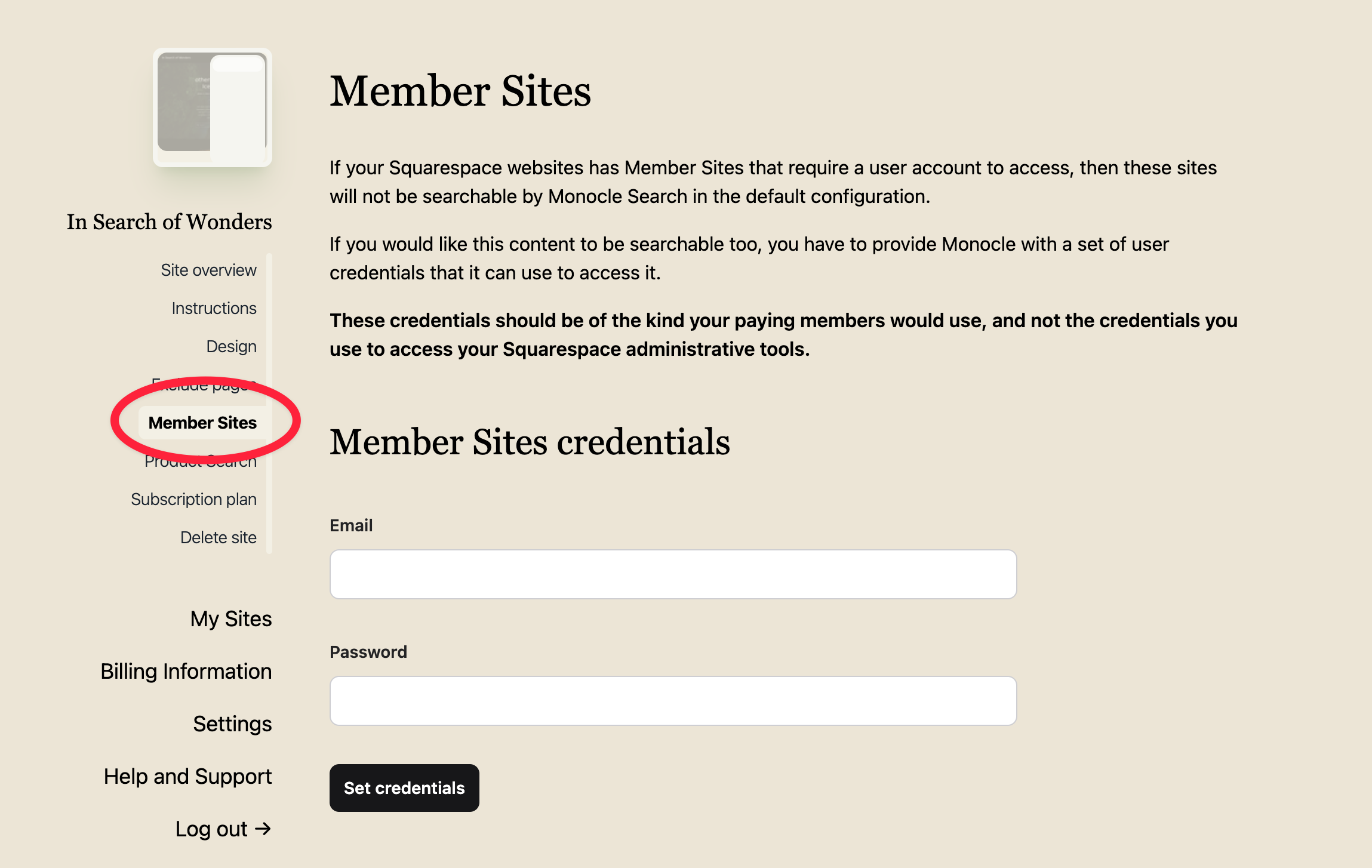
Monocle signs in with the credentials to validate them. After it saves the credentials, it starts a crawl. The crawl may take time on a large site.
Select Remove credentials to remove them. Monocle then starts a crawl that removes Member Site content from the search index.
Step 2: Choose who sees member content
On sites connected through Squarespace OAuth, Monocle detects whether a visitor is a logged-in member. You do not need to install or configure another component.
Logged-in members always see member content in their search results.
For logged-out visitors, choose an option under Logged out user behavior:
- Show protected content (default): Member Site content appears in results for all visitors. Results can include an excerpt when the design settings allow it.
- Hide protected content: Member Site content appears only for verified members.
Step 3: Label protected results
Member Site results can include a label. The label tells visitors why they may not be able to open the page.
At the bottom of the Member Sites page, you can:
- change the label text, for example, Members only
- show or hide the label

Whether results also show a text excerpt is controlled by your design settings, not by the label.
Member content in AI answers
By default, AI answers do not use protected content. The AI uses only public pages and tells visitors when it excluded protected pages.
To let AI answers use protected content for members, enable Can AI answers include protected member content? on the AI Answers page.
- Logged-in members can get answers based on Member Site content.
- Logged-out visitors get answers based on public content only.
This setting is separate from the search result setting. You can show protected results while excluding that content from AI answers.
Protected documents and PDFs
If your plan includes document search, Monocle also indexes documents in the Member Site area. Logged-in members can open them from search results. For logged-out visitors, Monocle either shows a redacted preview or omits the document.
Combining member search with search lenses
Search lenses also apply to Member Site content.
Member-only search: Create a lens for the Member Site paths, such as /members*. Limit its results to the same paths. Members who search in that area then see only Member Site content.
Public search without Member Site results: Exclude the Member Site paths from the Default lens. Create another lens for the Member Site area.
Troubleshooting
Some Member Site content is missing from results. Check that the configured member account can access every Member Site tier that you want to index.
Set credentials fails. Check that you entered member credentials, not a Squarespace administrator login. The message means that Monocle could not sign in with those credentials.
A setting changed, but the results did not. Wait for the automatic crawl to finish, then check again.
A logged-in member sees the logged-out experience. Check that the site uses the Squarespace OAuth connection and that the connection has the member profile permission. Reconnect the site if necessary.